 Documentation of the TWiki Implementation (version Wed, 14 Dec 2005 build 7851) - (1) Wiki Username vs. Login Username
- (2) TWiki Access Control
- (3) Wiki Templates
- (4) Wiki Variables
- (5) Notification of Changes by Email
- (6) TWiki Category Table
- (7) Implementation Notes
- (8) Installation Notes
- (9) Upgrading Earlier Versions of TWiki
Related Topics: TWikiWeb?, TWikiHistory, TWikiPlannedFeatures, TWikiEnhancementRequests.
(1) Wiki Username vs. Login Username
TWiki Username vs. Login Username
This section applies only if your TWiki is installed on a server that is both authenticated and on an intranet.
TWiki internally manages two usernames: Login username and TWiki username.
- Login username: When you login to the intranet, you use your existing login username, for example
pthoeny. This name is normally passed to TWiki by the REMOTE_USER environment variable. TWiki uses this name internally to log topic changes. Login usernames are maintained by your system administrator.
e * TWiki username: This is your name in WikiNotation, for example PeterThoeny, recorded when you register in TWikiRegistration; doing so also generates your personal home page in the Main web of your TWiki site.
FS can map the intranet username to the Wiki username automatically, provided that the Login username and Wiki username pair has been entered in the TWikiUsers topic. This happens automatically when you register.
NOTE: To correctly enter a WikiName - your own or someone else's - be sure to specify the Main web in front of the Wiki username: write Main.WikiUsername or %MAINWEB%.WikiUsername. This assures that the name will be linked automatically to the Main web, where user home pages are stored, even if the text is entered in a different web.
Related Topics: UserDocumentationCategory
(2) TWiki Access Control
TWiki Access Control
Restricting read and write access to topics and webs, by Users and groups
TWikiAccessControl allows you restrict access to single topics and entire webs, by individual user and by user Groups. Access control, combined with TWikiUserAuthentication, lets you easily create and manage an extremely flexible, fine-grained privilege system.
Permissions settings of the webs on this TWiki site
See TWikiAccessControl for details
Please Note:
- A blank in the the above table may mean either the corresponding control is absent or commented out or that it has been set to a null value. The two conditions have dramatically different and possibly opposed semantics.
- TWikiGuest is the guest account - used by unauthenticated users.
- The TWiki web must not be denied view to TWikiGuest - otherwise people will not be able to register.
Related Topics: SiteMap, UserDocumentationCategory, AdminDocumentationCategory, AdminToolsCategory
This table comes from SitePermissions
An Important Control Consideration
Open, freeform editing is the essence of WikiCulture - what makes TWiki different and often more effective than other collaboration tools. For that reason, it is strongly recommended that decisions to restrict read or write access to a web or a topic are made with great care - the more restrictions, the less Wiki in the mix. Experience shows that unrestricted write access works very well because: - Peer influence is enough to ensure that only relevant content is posted.
- Peer editing - the ability for anyone to rearrange all content on a page - keeps topics focussed.
- In TWiki, content is transparently preserved under revision control:
- Edits can be undone by the TWikiAdminGroup (the default administrators group; see #ManagingGroups).
- Users are encouraged to edit and refactor (condense a long topic), since there's a safety net.
As a collaboration guideline: - Create broad-based Groups (for more and varied input), and...
- Avoid creating view-only Users (if you can read it, you should be able to contribute to it).
Authentication vs. Access Control
Authentication: Identifies who a user is based on a login procedure. See TWikiUserAuthentication.
Access control: Restrict access to content based on users and groups once a user is identified.
Users and Groups
Access control is based on the familiar concept of Users and Groups. Users are defined by their WikiNames. They can then be organized in unlimited combinations by inclusion in one or more user Groups. For convenience, Groups can also be included in other Groups.
Managing Users
A user can create an account in TWikiRegistration. The following actions are performed: - WikiName and encrypted password are recorded using the password manager if authentication is enabled.
- A confirmation e-mail is sent to the user.
- A user home page with the WikiName of the user is created in the Main web.
- The user is added to the TWikiUsers topic.
The default visitor name is TWikiGuest. This is the non-authenticated user.
Managing Groups
Groups are defined by group topics created in the Main web, like the TWikiAdminGroup. To create a new group: -
Edit TWikiGroups by entering a new topic with a name that ends in Group. Example: - Define two TWikiVariables in the new group topic:
-
Set GROUP = < list of Users and/or Groups > -
Set ALLOWTOPICCHANGE = < list of Users and/or Groups > - The GROUP variable is a comma-separated list of Users and/or other Groups. Example:
-
Set GROUP = Main.SomeUser, Main.OtherUser, Main.SomeGroup
- ALLOWTOPICCHANGE defines who is allowed to change the group topic; it is a comma delimited list of Users and Groups. You typically want to restrict that to the members of the group itself, so it should contain the name of the topic. This prevents Users not in the Group from editing the topic to give themselves or others access. For example, for the TWikiAdminGroup topic write:
-
Set ALLOWTOPICCHANGE = Main.TWikiAdminGroup
- These are summarised on SitePermissions
 Note: Note: TWiki has strict formatting rules. Make sure you have three spaces, an asterisk, and an extra space in front of any access control rule.
The SuperAdminGroup
By mistyping a user or group name in the settings, it's possible to lock a topic so that no-one can edit it from a browser. To avoid this, you can create superusers: - Edit the
SuperAdminGroup as described above and add the wikinames of a group of Users who are always allowed to edit/view topics e.g.-
Set GROUP= ElizabethWindsor?,Main.TonyBlair
Restricting Access
You can define who is allowed to read or write to a web or a topic. Note that some plugins may not respect access permissions.
- Restricting VIEW blocks viewing and searching of content.
- Restricting CHANGE blocks creating new topics, changing topics or attaching files.
- Restricting RENAME controls who is allowed to rename, move or delete a topic.
- To rename, move or delete a topic, the user also also needs VIEW and CHANGE permission. They also need CHANGE access to change references in any referring topics (though the rename can proceed without this access), and CHANGE access to the target topic.
- Restricting MANAGE controls access to certain management functions, such as 'create web'. It must be set in the TWiki web.
Controlling access to a Web
You can define restrictions of who is allowed to view a FS web. You can restrict access to certain webs to selected Users and Groups, by:
- authenticating all webs and restricting selected webs: Topic access in all webs is authenticated, and selected webs have restricted access.
- authenticating and restricting selected webs only: Provide unrestricted viewing access to open webs, with authentication and restriction only on selected webs.
- You can define these settings in the WebPreferences topic, preferable towards the end of the topic:
-
Set DENYWEBVIEW = < comma-delimited list of Users and Groups > -
Set ALLOWWEBVIEW = < comma-delimited list of Users and Groups > -
Set DENYWEBCHANGE = < comma-delimited list of Users and Groups > -
Set ALLOWWEBCHANGE = < comma-delimited list of Users and Groups > -
Set DENYWEBRENAME = < comma-delimited list of Users and Groups > -
Set ALLOWWEBRENAME = < comma-delimited list of Users and Groups >
Be careful with empty values for any of these. In older versions of TWiki,
meant the same as not setting it at all. However since TWiki Dakar release, it means allow no-one access i.e. prevent anyone from viewing the web. Similarly
now means do not deny anyone the right to view this web. See "How TWiki evaluates ALLOW/DENY settings" below for more on this.
Controlling access to a Topic
- You can define these settings in the WebPreferences topic, preferable towards the end of the topic:
-
Set DENYTOPICVIEW = < comma-delimited list of Users and Groups > -
Set ALLOWTOPICVIEW = < comma-delimited list of Users and Groups > -
Set DENYTOPICCHANGE = < comma-delimited list of Users and Groups > -
Set ALLOWTOPICCHANGE = < comma-delimited list of Users and Groups > -
Set DENYTOPICRENAME = < comma-delimited list of Users and Groups > -
Set ALLOWTOPICRENAME = < comma-delimited list of Users and Groups >
Remember when opening up access to specific topics within a restricted web that other topics in the web - for example, the WebLeftBar - may also be accessed when viewing the topics. The message you get when you are denied access should tell you what topic you were not permitted to access.
Be careful with empty values for any of these. In older versions of TWiki,
meant the same as not setting it at all. However since TWiki Dakar release, it means allow no-one access i.e. prevent anyone from viewing the topic. Similarly
now means do not deny anyone the right to view this topic. See "How TWiki evaluates ALLOW/DENY settings" below for more on this.
Controlling access to Attachments
Attachments are referred to directly, and are not normally indirected via TWiki scripts. This means that the above instructions for access control will not apply to attachments. It is possible that someone may inadvertently publicise a URL that they expected to be access-controlled.
The easiest way to apply the same access control rules for attachments as apply to topics is to use the Apache mod_rewrite module, and configure your webserver to redirect accesses to attachments to the TWiki viewfile script. For example,
  ScriptAlias /twiki/bin/ /filesystem/path/to/twiki/bin/
  Alias /twiki/pub/       /filesystem/path/to/twiki/pub/

  RewriteEngine on
  RewriteRule ^/twiki/pub/TWiki/(.*)$ /twiki/pub/TWiki/$1 [L,PT]
  RewriteRule ^/twiki/pub/([^\/]+)/([^\/]+)/([^\/]+)$ /twiki/bin/viewfile/$1/$2?filename=$3 [L,PT]
That way all the controls that apply to the topic also apply to attachments to the topic. Other types of webserver have similar support.
Note: Images embedded in topics will load much slower since each image will be delivered by the viewfile script.
How TWiki evaluates ALLOW/DENY settings
When deciding whether to grant access, TWiki evaluates the following rules in order (read from the top of the list; if the logic arrives at PERMITTED or DENIED that applies immediately and no more rules are applied). You need to read the rules bearing in mind that VIEW, CHANGE and RENAME access may be granted/denied separately. - If the user is a super-user
- If DENYTOPIC is set to a list of wikinames
- people in the list will be DENIED.
- If DENYTOPIC is set to empty ( i.e. Set DENYTOPIC = )
- access is PERMITTED i.e no-one is denied access to this topic
- If ALLOWTOPIC is set
- people in the list are PERMITTED
- everyone else is DENIED
- Note that this means that setting ALLOWTOPIC to empty denies access to everyone except admins (unless DENYTOPIC is also set to empty, as described above)
- If DENYWEB is set to a list of wikiname
- people in the list are DENIED access
- If ALLOWWEB is set to a list of wikinames
- people in the list will be PERMITTED
- everyone else will be DENIED
- Note that setting ALLOWWEB to empty denies access to everyone except admins
- If you got this far, access is PERMITTED
Access Control quick recipes
Obfusticating Webs
Another way of hiding webs is to keep them hidden by not publishing the URL and by preventing the all webs search option from accessing obfuscated webs. Do so by enabling the NOSEARCHALL variable in WebPreferences:
This setup can be useful to hide a new web until content its ready for deployment, or to hide view access restricted webs.
Note: Obfuscating a web without view access control is very insecure, as anyone who knows the URL can access the web.
Authenticate all Webs and Restrict Selected Webs
Use the following setup to authenticate users for topic viewing in all webs and to restrict access to selected webs. Requires TWikiUserAuthentication to be enabled.
- Restrict view access to selected Users and Groups. Set one or both of these variables in its WebPreferences topic:
-
Set DENYWEBVIEW = < list of Users and Groups > -
Set ALLOWWEBVIEW = < list of Users and Groups > - Note:
DENYWEBVIEW is evaluated before ALLOWWEBVIEW. Access is denied if the authenticated person is in the DENYWEBVIEW list, or not in the ALLOWWEBVIEW list. Access is granted in case DENYWEBVIEW and ALLOWWEBVIEW is not defined.
- Hide the web from an "all webs" search. Enable this restriction with the
NOSEARCHALL variable in its WebPreferences topic:
Authenticate and Restrict Selected Webs Only
Use the following setup to provide unrestricted viewing access to open webs, with authentication only on selected webs. Requires TWikiUserAuthentication to be enabled.
- Restrict view access to selected Users and Groups. Set one or both of these variables in its WebPreferences topic:
-
Set DENYWEBVIEW = < list of Users and Groups > -
Set ALLOWWEBVIEW = < list of Users and Groups > - Note:
DENYWEBVIEW is evaluated before ALLOWWEBVIEW. Access is denied if the authenticated person is in the DENYWEBVIEW list, or not in the ALLOWWEBVIEW list. Access is granted in case DENYWEBVIEW and ALLOWWEBVIEW is not defined.
- Hide the web from an "all webs" search. Enable this restriction with the
NOSEARCHALL variable in its WebPreferences topic:
Hide Control Settings
 Tip: Tip: To hide access control settings from normal browser viewing, place them in HTML comment markers.
<!--
* Set DENYTOPICCHANGE = Main.SomeGroup
-->
(3) Wiki Templates
TWiki Templates
Definition of the templates used to render all HTML pages displayed in TWiki
Overview
There are three types of template:- Master Templates: Define blocks of text for use in other templates
- HTML Page Templates: Define the layout of FS pages
- Template Topics: Define default text when you create a new topic
All three types of template use the TWiki template system.
The TWiki Template System
Templates are plain text with embedded template directives that tell TWiki how to compose blocks of text together to create something new.
How Template Directives Work - Template directives are embedded in templates.
- Directives are of the form
%TMPL:<key>% and %TMPL:<key>{"attr"}%. - Directives:
-
%TMPL:INCLUDE{"file"}%: Includes a template file. The file is found as described below. -
%TMPL:DEF{"block"}%: Define a block. Text between this and the %TMPL:END% directive is not used in-place, but is saved for later use with %TMPL:P. Leading and trailing whitespace is ignored. -
%TMPL:END%: Ends a block definition. -
%TMPL:P{"var"}%: Includes a previously defined block. -
%{...}%: is a comment.
- Two-pass processing lets you use a variable before or after declaring it.
- Templates and TWikiSkins work transparently and interchangeably. For example, you can create a skin that overloads only the
twiki.tmpl master template, like twiki.print.tmpl, that redefines the header and footer. -
 Use of template directives is optional: templates work without them. Use of template directives is optional: templates work without them. - NOTE: Template directives work only for templates: they do not get processed in normal topic text.
TMPL:P also supports simple parameters. For example, given the definition
%TMPL:DEF{"x"}% x%P%z%TMPL:END% then %TMPL:P{"x" P="y"}% will expand to xyz.
Note that parameters can simply be ignored; for example=%TMPL:P{"x"}%= will expand to x%P%z.
Any alphanumeric characters can be used in parameter names. You are highly recommended to use parameter names that cannot be confused with TWikiVariables.
Note that three parameter names, context, then and else are reserved. They are used to support a limited form of "if" condition that you can use to select which of two templates to use, based on a context identifier:
%TMPL:DEF{"link_inactive"}%<input type="button" disabled value="Link>%TMPL:END%
%TMPL:DEF{"link_active"}%<input type="button" onclick="link()" value="Link" />%TMPL:END%
%TMPL:P{context="inactive" then="inactive_link" else="active_link"}% for %CONTEXT%
When the "inactive" context is set, then this will expand the "link_inactive" template; otherwise it will expand the "link_active" template.
See IfStatements for details of supported context identifiers.
Finding Templates
Templates are stored either in the twiki/templates directory, or can also be read from user topics. As an example, twiki/templates/view.tmpl is the default template file for the twiki/bin/view script.
Templates that are included using %TMPL:INCLUDE% are also found using the same search algorithm, unless you explicitly put '.tmpl' at the end of the template name. In this case, the string is assumed to be the full name of a template in the templates directory, and the algorithm isn't used.
TWiki uses the following search order to determine which template file or topic to use for a particular script. The skin path is set as described in TWikiSkins.
- templates/web/script.skin.tmpl for each skin on the skin path
- this usage is supported for compatibility only and is deprecated. Store web-specific templates in TWiki topics instead.
- templates/script.skin.tmpl for each skin on the skin path
- templates/web/script.tmpl
- this usage is supported for compatibility only and is deprecated. Store web-specific templates in TWiki topics instead.
- templates/script.tmpl
- The TWiki topic web.topic if the template name can be parsed into web.topic
- The TWiki topic web.SkinSkinScriptTemplate for each skin on the skin path
- The TWiki topic web.ScriptTemplate
- The TWiki topic TWiki.SkinSkinScriptTemplate for each skin on the skin path
- The TWiki topic TWiki.ScriptTemplate
Legend:- script refers to the script name, e.g
view, edit - Script refers to the same, but with the first character capitalized, e.g
View - skin refers to a skin name, e.g
dragon, pattern. All skins are checked at each stage, in the order they appear in the skin path. - Skin refers to the same, but with the first character capitalized, e.g
Dragon - web refers to the current web
For example, the example template file will be searched for in the following places, when the current web is Thisweb and the skin path is print,pattern: -
templates/Thisweb/example.print.tmpl deprecated; don't rely on it -
templates/Thisweb/example.pattern.tmpl deprecated; don't rely on it -
templates/example.print.tmpl -
templates/example.pattern.tmpl -
templates/Thisweb/example.tmpl deprecated; don't rely on it -
templates/example.tmpl -
Thisweb.PrintSkinExampleTemplate -
Thisweb.PatternSkinExampleTemplate -
Thisweb.ExampleTemplate -
TWiki.PrintSkinExampleTemplate -
TWiki.PatternSkinExampleTemplate -
TWiki.ExampleTemplate
Template names are usually derived from the name of the currently executing script; however it is also possible to override these settings in the view and edit scripts, for example when a topic-specific template is required. Two preference variables can be user to override the templates used: -
VIEW_TEMPLATE sets the template to be used for viewing a topic -
EDIT_TEMPLATE sets the template for editing a topic.
If these preferences are set locally (using Local instead of Set) for a topic, or as WebPreferences or TWikiPreferences (using Set), the indicated templates will be chosen for view and edit respectively. The template search order is as specified above.
Master Templates
Master templates use the block definition directives ( %TMPL:DEF and %TMPL:END%) to define common sections that appear in two or more other templates. twiki.tmpl is the default master template.
| Template variable: | Defines: |
|---|
| %TMPL:DEF{"sep"}% | "|" separator |
| %TMPL:DEF{"htmldoctype"}% | Start of all HTML pages |
| %TMPL:DEF{"standardheader"}% | Standard header (ex: view, index, search) |
| %TMPL:DEF{"simpleheader"}% | Simple header with reduced links (ex: edit, attach, oops) |
| %TMPL:DEF{"standardfooter"}% | Footer, excluding revision and copyright parts |
| %TMPL:DEF{"oops"}% | Skeleton of oops dialog |
HTML Page Templates
HTML page templates are files of HTML mixed with template directives that tell TWiki how to build up an HTML page. As described above, the template system supports the use of 'include' directives that let you re-use the same sections of HTML - such as headers and footers - in several different places.
TWiki uses HTML page templates when composing the output from all actions, like topic view, edit, and preview. This allows you to change the look and feel of all pages by editing just a few template files.
HTML page templates are also used in the definition of TWikiSkins.
Template Topics
Template topics define the default text for new topics. There are three types of template topic:
When you create a new topic, TWiki locates a topic to use as a content template according to the following search order:
- A topic name specified by the
templatetopic CGI parameter- if no web is specified, the current web is searched first and then the TWiki web
- WebTopicEditTemplate in the current web
- WebTopicEditTemplate in the TWiki web
Edit Template Topics and Variable Expansion
The following variables get expanded when a user creates a new topic based on a template topic:
| Variable: | Description: |
|---|
%DATE% | Signature format date. See TWikiVariables#VarDATE |
%GMTIME% | Date/time. See TWikiVariables#VarGMTIME |
%GMTIME{...}% | Formatted date/time. See TWikiVariables#VarGMTIME2 |
%NOP% | A no-operation variable that gets removed. Useful to prevent a SEARCH from hitting an edit template topic; also useful to escape a variable like %URLPARAM%NOP%{...}% |
%NOP{ ... }% | Text that gets removed when a new topic based on the template is created. See notes below. |
%SERVERTIME% | Date/time. See TWikiVariables#VarSERVERTIME |
%SERVERTIME{...}% | Formatted date/time. See TWikiVariables#VarSERVERTIME2 |
%USERNAME% | Login name of user who is instantiating the new topic, e.g. guest |
%URLPARAM{"name"}% | Value of a named URL parameter |
%WIKINAME% | WikiName of user who is instantiating the new topic, e.g. TWikiGuest |
%WIKIUSERNAME% | User name of user who is instantiating the new tpoic, e.g. Main.TWikiGuest |
The NOP tag is used to embed text that you do not want expanded when a new topic based on the template is created. For example, you might want to write in the template:
This template can only be changed by:
   * Set ALLOWTOPICCHANGE = WikiMastersGroup
This will restrict who can edit the template, but will get removed when a topic based on the template is created.
%NOP% (or %NOP{}% can be used to prevent expansion of TWiki variables that would otherwise be expanded during topic creation e.g. %SERVERTIME%.
Notes:-
%NOP{ ... }% can span multiple lines. - The scan for the closing
}% pattern is "non-greedy", that is, it stops at the first occurence. That means you have to protect variables with parameters located inside %NOP{ ... }%. To do this, insert a %NOP% between } and %. Example: %NOP{ %GMTIME{"$year"}%NOP%% }%.
All other variables are unchanged, e.g. are carried over "as is" into the new topic.
Template Topics in Action
Here is an example for creating new topics based on a specific template topic:
The above form asks for a topic name. A hidden input tag named templatetopic specifies ExampleTopicTemplate as the template topic to use. Here is the HTML source of the form:
<form name="new" action="%SCRIPTURL{"edit"}%/%INTURLENCODE{"%WEB%"}%/">
   * New example topic:
     <input type="text" name="topic" value="ExampleTopic%SERVERTIME{$yearx$mox$day}%" size="23" />
     <input type="hidden" name="templatetopic" value="ExampleTopicTemplate" />
     <input type="hidden" name="topicparent" value="%TOPIC%" />
     <input type="hidden" name="onlywikiname" value="on" />
     <input type="hidden" name="onlynewtopic" value="on" />
     <input type="submit" class="twikiSubmit" value="Create" />
     (date format is <nop>YYYYxMMxDD)
</form>
See TWikiScripts for details of the parameters that the edit script understands.
TIP: You can use the %WIKIUSERNAME% and %DATE% variables in your topic templates to include the signature of the person creating a new topic. The variables are expanded into fixed text when a new topic is created. The standard signature is:
-- %WIKIUSERNAME% - %DATE%
Automatically Generated Topicname
If you want to make a TWiki application where you need automatically generated unique topicnames, you can use 10 X's in the edit / save URL, and they will be replaced on topic save with a count value. For example, BugIDXXXXXXXXXX will result in topics named BugID0, BugID1, BugID2 etc.
Example link to create a new topic:
[[%SCRIPTURL{"edit"}%/%WEB%/BugIDXXXXXXXXXX?templatetopic=BugTemplate&topicparent=%TOPIC%&t=%SERVERTIME{"$day$hour$min$sec"}%][Create new item]]
Master Templates by Example
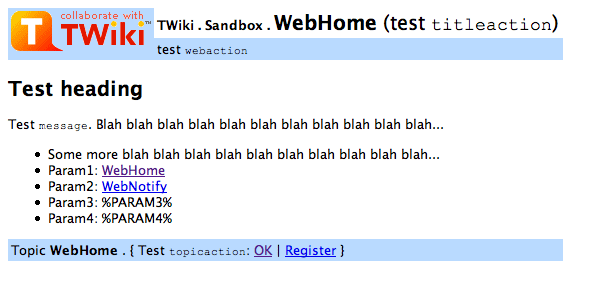
Attached is an example of an oops based template oopsbase.tmpl and an example oops dialog oopstest.tmpl based on the base template. %A% NOTE: This isn't the release version, just a quick, simple demo.
Base template oopsbase.tmpl
The first line declares a delimiter variable called "sep", used to separate multiple link items. The variable can be called anywhere by writing %TMPL:P{"sep"}%
%TMPL:DEF{"sep"}% | %TMPL:END%
<html>
<head>
  <title> %WIKITOOLNAME% . %WEB% . %TOPIC% %.TMPL:P{"titleaction"}%</title>
  <base href="%SCRIPTURL{"view"}%/%WEB%/%TOPIC%">
  <meta name="robots" content="noindex">
</head>
<body bgcolor="#FFFFFF">
<table width="100%" border="0" cellpadding="3" cellspacing="0">
  <tr>
    <td bgcolor="%WEBBGCOLOR%" rowspan="2" valign="top" width="1%">
      <a href="%WIKIHOMEURL%">
      <img src="%PUBURLPATH%/wikiHome.gif" border="0"></a>
    </td>
    <td>
      <b>%WIKITOOLNAME% . %WEB% . </b><font size="+2">
      <B>%TOPIC%</b> %TMPL:P{"titleaction"}%</font>
    </td>
  </tr>
  <tr bgcolor="%WEBBGCOLOR%">
    <td colspan="2">
      %TMPL:P{"webaction"}%
    </td>
  </tr>
</table>
--- ++ %TMPL:P{"heading"}%
%TMPL:P{"message"}%
<table width="100%" border="0" cellpadding="3" cellspacing="0">
  <tr bgcolor="%WEBBGCOLOR%">
    <td valign="top">
      Topic <b>%TOPIC%</b> . {
        %TMPL:P{"topicaction"}%
      }
    </td>
  </tr>
</table>
</body>
|
Test template oopstest.tmpl
Each oops template basically just defines some variables and includes the base template that does the layout work.
%TMPL:DEF{"titleaction"}% (test =titleaction=) %TMPL:END%
%TMPL:DEF{"webaction"}% test =webaction= %TMPL:END%
%TMPL:DEF{"heading"}%
Test heading %TMPL:END%
%TMPL:DEF{"message"}%
Test =message=. Blah blah blah blah blah blah blah blah blah blah blah...

   * Some more blah blah blah blah blah blah blah blah blah blah...
   * Param1: %PARAM1%
   * Param2: %PARAM2%
   * Param3: %PARAM3%
   * Param4: %PARAM4%
%TMPL:END%
%TMPL:DEF{"topicaction"}%
Test =topicaction=:
[[%WEB%.%TOPIC%][OK]] %TMPL:P{"sep"}%
[[%TWIKIWEB%.TWikiRegistration][Register]] %TMPL:END%
%TMPL:INCLUDE{"oopsbase"}%
|
</table >
Sample screen shot of oopstest.tmpl
With URL: .../bin/oops/Sandbox/TestTopic2?template=oopstest¶m1=WebHome¶m2=WebNotify
Related Topics: TWikiSkins, DeveloperDocumentationCategory, AdminDocumentationCategory
(4) Wiki Variables
TWiki Variables
Special text strings expand on the fly to display user data or system info
TWikiVariables are text strings - %VARIABLE% - that expand into content whenever a page is rendered for viewing. Some variables can even take parameters - %VARIABLE{parameter="value"}%.
- To leave a variable unexpanded, precede it with an exclamation point, e.g. type
!%TOPIC% to get %TOPIC%. - Variables are expanded relative to the topic they are used in, not the topic they are defined in.
- Optional plugins may extend the set of predefined variables
Setting Variables
You can set variables in all the following places:- local site level in TWikiPreferences
- user level in individual user topics in Main web
- web level in WebPreferences of each web
- topic level in topics in webs
- plugin topics (see TWikiPlugins)
- session variables (if sessions are enabled)
Settings at higher-numbered levels override settings of the same variable at lower numbered levels, unless the variable was included in the setting of FINALPREFERENCES at a lower-numbered level, in which case it is locked at the value it has at that level.
There are many predefined variables defined by default, and many more may already have been defined for your site. You can put %ALL_VARIABLES% into a topic anywhere in your TWiki to get a full listing of the variables defined there.
The syntax for setting Variables is the same anywhere in TWiki (on its own TWiki bullet line, including nested bullets):
[multiple of 3 spaces] * [space] Set [space] VARIABLENAME [space] = [value]
Examples:
Spaces between the = sign and the value will be ignored. You can split a value over several lines by starting following lines with [multiple of 3 spaces] - as long as you don't try to use * as the first character on the following line.
Example:
   * Set VARIABLENAME = value starts here
   and continues here
Whatever you include in your Variable will be expanded on display, exactly as if it had been entered directly.
Example: Create a custom logo variable
- To place a logo anywhere in a web by typing
%MYLOGO%, define the Variable on the web's WebPreferences page, and upload a logo file, ex: mylogo.gif. You can upload by attaching the file to WebPreferences, or, to avoid clutter, to any other topic in the same web, ex: LogoTopic - Sample variable setting in WebPreferences:-
Set MYLOGO = %PUBURLPATH%/TWiki/LogoTopic/mylogo.gif
You can also set preference variables on a topic by clicking the link Edit topic preference settings under More topic actions. Preferences set in this manner are not visible in the topic text, but take effect nevertheless.
Access Control Variables
You should review TWikiAccessControl for details about security settings, which are managed using TWikiVariables.
Local values for variables
Certain topics (a users home topic, web site and default preferences topics) have a problem; variables defined in those topics can have two meanings. For example, consider a user topic. A user may want to use a double-height edit box when they are editing their home topic - but only when editing their home topic. The rest of the time, they want to have a normal edit box. This separation is achieved using Local in place of Set in the variable definition. For example, if the user sets the following in their home topic:
   * Set EDITBOXHEIGHT = 10
   * Local EDITBOXHEIGHT = 20
Then when they are editing any other topic, they will get a 10 high edit box. However when they are editing their home topic, they will get a 20 high edit box.
Local can be used wherever a preference needs to take a different value depending on where the current operation is being performed.
Use this powerful feature with great care! %ALL_VARIABLES% can be used to get a listing of the values of all variables in their evaluation order, so you can see variable scope if you get confused.
Predefined Variables
Most predefined variables return values that were either set in the configuration when TWiki was installed, or taken from server info (like current username, or date and time). Some, like =%SEARCH%, are powerful and general tools.
- Predefined variables can be overridden by Preferences variables
- Plugins may extend the set of predefined variables see individual Plugins topics for details
- Take the time to thoroughly read through ALL preference variables. If you actively configure your site, review variables periodically. They cover a wide range of functions, and it can be easy to miss the one perfect variable for something you have in mind. For example, see
%INCLUDINGTOPIC%, %INCLUDE%, and the mighty %SEARCH%.
This version of TWiki - Wed, 14 Dec 2005 build 7851 - predefines the following variables
ACTIVATEDPLUGINS -- list of currently activated plugins - Syntax:
%ACTIVATEDPLUGINS% - Expands to: CommentPlugin, EditTablePlugin, ExifMetaDataPlugin, HeadlinesPlugin, InterwikiPlugin, PreferencesPlugin, RedirectPlugin, SlideShowPlugin, SmiliesPlugin, SpreadSheetPlugin, TablePlugin
- Related: PLUGINDESCRIPTIONS, FAILEDPLUGINS, PLUGINVERSION
ATTACHURL -- full URL for attachments in the current topic
ATTACHURLPATH -- path of the attachment URL of the current topic
AUTHREALM -- authentication realm
BASETOPIC -- base topic where an INCLUDE started - The name of the topic where a single or nested INCLUDE started - same as
%TOPIC% if there is no INCLUDE - Syntax:
%BASETOPIC% - Related: BASEWEB, INCLUDINGTOPIC, INCLUDE, TOPIC
BASEWEB -- base web where an INCLUDE started - The web name where the includes started, e.g. the web of the first topic of nested includes. Same as
%WEB% in case there is no include. - Syntax:
%BASEWEB% - Related: BASETOPIC, INCLUDINGWEB, INCLUDE, WEB
DATE -- signature format date
DISPLAYTIME -- display time
DISPLAYTIME{"format"} -- formatted display time - Formatted time - either GMT or Local server time, depending on setting in configure. Same format qualifiers as
%GMTIME% - Syntax:
%DISPLAYTIME{"format"}% - Example:
%DISPLAYTIME{"$hou:$min"}% expands to 19:41 - Related: DISPLAYTIME, GMTIME, SERVERTIME
ENCODE{"string"} -- encodes a string - Syntax:
%ENCODE{"string"}% - Supported parameters:
| Parameter: | Description: | Default: |
|---|
"string" | String to encode | required (can be empty) | type="entity" | Encode special characters into HTML entities, like a double quote into " | URL encoding | type="url" | Encode special characters for URL parameter use, like a double quote into %22 | (this is the default) | - Example:
%ENCODE{"spaced name"}% expands to spaced%20name - Related: URLPARAM
ENDSECTION{"name"} -- marks the end of a named section
FAILEDPLUGINS -- debugging for plugins that failed to load, and handler list
FORMFIELD{"format"} -- renders a field in the form attached to some topic - Syntax:
%FORMFIELD{"fieldname"}% - Supported parameters:
| Parameter: | Description: | Default: |
|---|
"fieldname" | The name of a TWiki form field | required | topic="..." | Topic where form data is located. May be of the form Web.TopicName | Current topic | format="..." | Format string. $value expands to the field value, and $title expands to the field title | "$value" | default="..." | Text shown when no value is defined for the field | "" | alttext="..." | Text shown when field is not found in the form | "" | - Example:
%FORMFIELD{"ProjectName" topic="Projects.SushiProject" default="(not set)" alttext="ProjectName field found"}% - Related: SEARCH
GMTIME -- GM time
GMTIME{"format"} -- formatted GM time - Syntax:
%GMTIME{"format"}% - Supported variables:
| Variable: | Unit: | Example |
|---|
$seconds | seconds | 59 | $minutes | minutes | 59 | $hours | hours | 23 | $day | day of month | 31 | $wday | day of the Week (Sun, Mon, Tue, Wed, Thu, Fri, Sat) | Thu | $dow | day of the week (Sun = 0) | 2 | $week | number of week in year (ISO 8601) | 34 | $month | month in ISO format | Dec | $mo | 2 digit month | 12 | $year | 4 digit year | 1999 | $ye | 2 digit year | 99 | $tz | either "GMT" (if set to gmtime), or "Local" (if set to servertime) | GMT | $iso | ISO format timestamp | 2026-10-02T19:41Z | $rcs | RCS format timestamp | 2026/10/02 19:41:02 | $http | E-mail & http format timestamp | Fri, 02 Oct 2026 19:41:02 GMT | $epoch | Number of seconds since 00:00 on 1st January, 1970 | 1790970062 | - Variables can be shortened to 3 characters
- Example:
%GMTIME{"$day $month, $year - $hour:$min:$sec"}% expands to 02 Oct, 2026 - 19:41:02 - Note: When used in a template topic, this variable will be expanded when the template is used to create a new topic. See TWikiTemplates#TemplateTopicsVars for details.
- Related: DISPLAYTIME, GMTIME, SERVERTIME
HOMETOPIC -- home topic in each web
HTTP -- get HTTP headers
HTTPS -- get HTTPS headers - The same as %HTTP but operates on the HTTPS environment variables present when the SSL protocol is in effect. Can be used to determine whether SSL is turned on.
- Syntax:
%HTTPS% - Syntax:
%HTTPS{'Header-name'}% - Related: HTTP, REMOTE_ADDR, REMOTE_PORT, REMOTE_USER
HTTP_HOST -- environment variable
ICON{"name"} -- small documentation graphic or icon of common attachment types - Small graphic (commonly 16x16 pixels) used to enhance topics. Specify the name of the graphic.
- A set of 16x16 pixel icons of common attachment types is provided. Specify file type only, file name, or full path name.
- Syntax:
%ICON{"name"}% or %ICON{"type"}% - Graphic samples:
 arrowbright,  bubble,  choice-yes,  hand - Filetype samples:
 bmp,  doc,  gif,  hlp,  html,  mp3,  pdf,  ppt,  txt,  xls,  xml,  zip - Example:
%ICON{"info"}% expands to  - Related: TWikiPreferences, FileAttachments, TWikiDocGraphics
ICONPATH{"name"} -- url path of small documentation graphic or icon of common attachment types
IF{"condition" ...} -- simple conditionals - Syntax:
%IF{"CONDITION" then="THEN" else="ELSE"}% - In the example above, if
CONDITION evaluates to TRUE, then THEN will be shown; otherwise ELSE will be shown. - Related: IfStatements has more information on how to write
%IF{}% statements - Related: $IF() of SpreadSheetPlugin
INCLUDE{"page"} -- include other topic or web page - Syntax:
%INCLUDE{"page" ...}% - Supported parameters:
| Parameter: | Description: | Default: |
|---|
"SomeTopic" | The name of a topic located in the current web, i.e. %INCLUDE{"WebNotify"}% | | "Web.Topic" | A topic in another web, i.e. %INCLUDE{"TWiki.SiteMap"}% | | "http://..." | A full qualified URL, i.e. %INCLUDE{"http://twiki.org:80/index.html"}%. Supported content types are text/html and text/plain.
if the URL resolves to an attachment file on the server this will automatically translate to a server-side include. | | pattern="..." | A RegularExpression pattern to include a subset of a topic or page | none | rev="2" | Include a previous topic revision; N/A for URLs | top revision | warn="off" | Warn if topic include fails: Fail silently (if off); output default warning (if set to on); else, output specific text (use $topic for topic name) | on preferences setting | section="name" | Includes only the specified section, as defined in the included topic by the SECTION and ENDSECTION variables | | PARONE="val 1"
PARTWO="val 2" | Any other parameter will be defined as a variable within the scope of the included topic. The example parameters on the left will result in %PARONE% and %PARTWO% being defined within the included topic. | | - Examples: See IncludeTopicsAndWebPages
- Related: BASETOPIC, BASEWEB, INCLUDINGTOPIC, INCLUDINGWEB, STARTINCLUDE, STOPINCLUDE, SECTION, ENDSECTION
INCLUDINGTOPIC -- name of topic that includes current topic - The name of the topic that includes the current topic - same as
%TOPIC% in case there is no include - Syntax:
%INCLUDINGTOPIC% - Related: BASETOPIC, INCLUDINGWEB, INCLUDE, TOPIC
INCLUDINGWEB -- web that includes current topic - The web name of the topic that includes the current topic - same as
%WEB% if there is no INCLUDE. - Syntax:
%INCLUDINGWEB% - Related: BASEWEB, INCLUDINGTOPIC, INCLUDE, WEB
LANGUAGES -- list available TWiki languages - List the languages available (as
PO files) to TWiki. Those are the languages in which TWiki's user interface is available. - Syntax:
%LANGUAGES{...}% - Supported parameters:
| Parameter: | Description: | Default: |
|---|
format | format for each item. See below for variables available in the format string. | " * $langname" | sep | separator between items. | "\n" (newline) | -
format variables: | Variable | Meaning |
|---|
$langname | language's name, as informed by the translators | $langtag | language's tag. Ex: en, pt-br, etc. |
LOCALSITEPREFS -- web.topicname of site preferences topic - The full name of the local site preferences topic. This topic is read for preferences before TWiki.%TWIKIPREFSTOPIC% is read.
- Syntax:
%LOCALSITEPREFS% - Expands to: Main.TWikiPreferences
LOGIN -- present a full login link
LOGOUT -- present a full logout link
MAKETEXT -- creates text using TWiki's I18N infrastructure - Syntax =
%MAKETEXT{"string" args="..."} - Supported parameters:
| Parameter | Description | Default |
|---|
"text" or string="text" | The text to be displayed. | none | args="param1, param2" | a comma-separated list of arguments to be interpolated in the string, replacing the [_N] placeholders in it. | none | - Examples:
-
%MAKETEXT{string="Notes:"}%
expands to
Notes: -
%MAKETEXT{"Contact [_1] if you have any questions." args="%WIKIWEBMASTER%"}%
expands to
Contact jpw@rainysky.org if you have any questions. -
%MAKETEXT{"Did you want to [[[_1]][reset [_2]'s password]]?" args="TWiki.ResetPassword,%WIKIUSERNAME%"}%
expands to
Did you want to reset Main.TWikiGuest's password?
- Notes:
- that TWiki will translate the
string to the current user's language only if it has such string in its translation table for that language. - Amperstands (
&) followed by one letter (one of a...z, A...Z) (say, X) in the translatable string will be translated to <span class='twikiAccessKey'>X</span>. This is used to implement access keys. If you want to write an actual amperstand that stays just before a letter, write two consecutive amperstands (&&): they will be transformed in just one. - translatable string starting with underscores (
_) are reserved. You should not use translatable phrases starting with an underscore.
MAINWEB -- name of Main web
META -- displays meta-data - Provided mainly for use in templates, this variable generates the parts of the topic view that relate to meta-data (attachments, forms etc.) The
formfield item is the most likely to be useful to casual users. - Syntax:
%META{ "item" ...}% - Parameters:
| Item | Options | Description |
|---|
"formfield" | name="..." - name of the field. The field value can be shortened as described in FormattedSearch for $formfield | Show a single form field | "form" | none | Generates the table showing the form fields. See Form Templates | "attachments" | all="on" to show hidden attachments | Generates the table showing the attachments | "moved" | none | Details of any topic moves | "parent" | dontrecurse="on": By default recurses up tree, this has some cost.
nowebhome="on": Suppress WebHome.
prefix="...": Prefix that goes before parents, but only if there are parents, default "".
suffix="...": Suffix, only appears if there are parents, default "".
separator="...": Separator between parents, default is " > ". | Generates the parent link | - Related: METASEARCH
METASEARCH -- special search of meta data - Syntax:
%METASEARCH{...}% - Supported parameters:
| Parameter: | Description: | Default: |
|---|
type="topicmoved" | What sort of search is required?
"topicmoved" if search for a topic that may have been moved
"parent" if searching for topics that have a specific parent i.e. its children
"field" if searching for topics that have a particular form field value (use the name and value parameters to specify which field to search) | required | web="%WEB%" | Wiki web to search: A web, a list of webs separated by whitespace, or all webs. | current web | topic="%TOPIC%" | The topic the search relates to, for topicmoved and parent searches | current topic | name | form field to search, for field type searches. May be a regular expression (see SEARCH). | | value | form field value, for field type searches. May be a regular expression (see SEARCH). | | title="Title" | Text that is prefixed to any search results | empty | default="none" | Default text shown if no search hit | empty | - Example:
%METASEARCH{type="topicmoved" web="%WEB%" topic="%TOPIC%" title="This topic used to exist and was moved to: "}% - Example: You may want to use this in WebTopicViewTemplate and WebTopicNonWikiTemplate:
%METASEARCH{type="parent" web="%WEB%" topic="%TOPIC%" title="Children: "}% - Example:
%METASEARCH{type="field" name="Country" value="China"}% - Related: SEARCH, META
NOP -- template text not to be expanded in instantiated topics - Syntax:
%NOP% - Syntax:
%NOP{...}% - Available in template topics only. See TWikiTemplates#HtmlTemplates for details. In normal topic text, simply expands to whatever is in the curly braces (if anything).
NOTIFYTOPIC -- name of the notify topic
PLUGINDESCRIPTIONS -- list of plugin descriptions - Syntax:
%PLUGINDESCRIPTIONS% - Expands to:
- CommentPlugin (Dakar, 6827): Allows users to quickly post comments to a page without an edit/preview/save cycle.
- EditTablePlugin (Dakar, 6827): Edit TWiki tables using edit fields, date pickers and drop down boxes
- ExifMetaDataPlugin (1.010): Displays EXIF data for jpeg images attached to a topic.
- GuidPlugin: (disabled)
- HeadlinesPlugin (1.95, 7779): Build news portals that show headline news based on RSS news feeds from news sites.
- InterwikiPlugin (Dakar, $Rev: 7873$): Link
ExternalSite:Page text to external sites based on aliases defined in the %RULESTOPIC% topic - PreferencesPlugin (Dakar, 6827): Allows editing of preferences using fields predefined in a form
- RedirectPlugin (1.000): This plugin allows one to produce TWiki topics that automatically redirect to other TWiki topics or URLs.
- SlideShowPlugin (Dakar, $Rev: 7873$): Create web based presentations based on topics with headings.
- SmiliesPlugin (Dakar, 6827): Render smilies as icons, like
:-) for  or or :cool: for :cool: - SpreadSheetPlugin (Dakar, 6827): Add spreadsheet calculation like
"$SUM( $ABOVE() )" to tables located in FS topics. - TablePlugin (Dakar, 6850): Control attributes of tables and sorting of table columns
- Related: ACTIVATEDPLUGINS, FAILEDPLUGINS, PLUGINVERSION
PLUGINVERSION -- the version of the TWiki Plugin API - This is the
$TWiki::Plugins::VERSION number, also indicating the version of the Func module - Syntax:
%PLUGINVERSION% - Expands to:
1.1 - Related: PLUGINVERSION{"name"}, WIKIVERSION
PLUGINVERSION{"name"} -- the version of an installed Plugin
PUBURL -- the base URL of attachments - Syntax:
%PUBURL% - Expands to:
https://fs.rainysky.org/pub - Example: You can refer to a file attached to another topic with
%PUBURL%/%WEB%/OtherTopic/image.gif - Related: ATTACHURL, PUBURLPATH, SCRIPTURL, FileAttachments
PUBURLPATH -- the base URL path of attachments
QUERYSTRING -- full, unprocessed string of parameters to this URL - Syntax: %QUERYSTRING%
- Expands to:
rev=15;skin=print.pattern%2Cpattern - String of all the URL parameters that were on the URL used to get to the current page. For example, if you add ?name=Samantha;age=24;eyes=blue to this URL you can see this in action. This string can be appended to a URL to pass parameter values on to another page.
- Note: URLs built this way are typically restricted in length, typically to 2048 characters. If you need more space than this, you will need to use an HTML form and
%URLPARAM{}%. - Related: URLPARAM
REMOTE_ADDR -- environment variable
REMOTE_PORT -- environment variable
REMOTE_USER -- environment variable
REVINFO -- revision information of current topic
REVINFO{"format"} -- formatted revision information of topic - Syntax:
%REVINFO{"format"}% - Supported parameters:
| Parameter: | Description: | Default: |
|---|
"format" | Format of revision information, see supported variables below | "r1.$rev - $date - $wikiusername" | web="..." | Name of web | Current web | topic="..." | Topic name | Current topic | rev="1.5" | Specific revison number | Latest revision | - Supported variables in format:
| Variable: | Unit: | Example |
|---|
$web | Name of web | Current web | $topic | Topic name | Current topic | $rev | Revison number. Prefix r1. to get the usual r1.5 format | 5 | $date | Revision date | 11 Jul 2004 | $username | Login username of revision | jsmith | $wikiname | WikiName of revision | JohnSmith | $wikiusername | WikiName with Main web prefix | Main.JohnSmith | - Example:
%REVINFO{"$date - $wikiusername" rev="1.1"}% returns revision info of first revision - Related: REVINFO
SCRIPTNAME -- name of current script - The name of the current script is shown, including script suffix, if any (for example
viewauth.cgi) - Syntax:
%SCRIPTNAME% - Expands to:
view - Related: SCRIPTSUFFIX, SCRIPTURL
SCRIPTSUFFIX -- script suffix - Some FS installations require a file extension for CGI scripts, such as
.pl or .cgi - Syntax:
%SCRIPTSUFFIX% - Expands to:
- Related: SCRIPTNAME, SCRIPTURL, SCRIPTURLPATH
SCRIPTURL -- script URL - Syntax:
%SCRIPTURL% - Expands to:
https://fs.rainysky.org/bin - Example: To get the authenticated version of current topic write
"}%L%/viewauth%SCRIPTSUFFIX%/%WEB%/%TOPIC% which expands to /bin/viewauth/TWiki/TWikiVariablesNtoZ - Syntax:
%SCRIPTURL{"script"}% - Expands to:
/bin/script - Example: To get the authenticated version of current topic write
%SCRIPTURL{"viewauth"}%/TWiki/TWikiVariablesNtoZ which expands to /bin/viewauth/TWiki/TWikiVariablesNtoZ - This second form of SCRIPTURL handles URL rewriting (see TWiki:TWiki.ShorterURLCookbook).
- Related: PUBURL, SCRIPTNAME, SCRIPTSUFFIX, SCRIPTURLPATH
SCRIPTURLPATH -- script URL path
SEARCH{"text"} -- search content - Inline search, shows a search result embedded in a topic
- Syntax:
%SEARCH{"text" ...}% - Supported parameters:
| Parameter: | Description: | Default: |
|---|
"text" | Search term. Is a keyword search, literal search or regular expression search, depending on the type parameter. SearchHelp has more | required | search="text" | (Alternative to above) | N/A | web="Name"
web="Main, Know"
web="all" | Comma-separated list of webs to search. The special word all means all webs that doe not have the NOSEARCHALL variable set to on in their WebPreferences. You can specifically exclude webs from an all search using a minus sign - for example, web="all,-Secretweb". | Current web | topic="WebPreferences"
topic="*Bug" | Limit search to topics: A topic, a topic with asterisk wildcards, or a list of topics separated by comma. | All topics in a web | excludetopic="Web*"
excludetopic="WebHome, WebChanges" | Exclude topics from search: A topic, a topic with asterisk wildcards, or a list of topics separated by comma. | None | type="keyword"
type="literal"
type="regex" | Do a keyword search like soap "web service" -shampoo; a literal search like web service; or RegularExpression search like soap;web service;!shampoo | %SEARCHVAR- DEFAULTTYPE% preferences setting (literal) | scope="topic"
scope="text"
scope="all" | Search topic name (title); the text (body) of topic; or all (both) | "text" | order="topic"
order="created"
order="modified"
order="editby"
order
"formfield(name)"= | Sort the results of search by the topic names, topic creation time, last modified time, last editor, or named field of TWikiForms. The sorting is done web by web; if you want to sort across webs, create a formatted table and sort it with TablePlugin's initsort. Note that dates are sorted most recent date last (i.e at the bottom of the table). | Sort by topic name | limit="all"
limit="16" | Limit the number of results returned. This is done after sorting if order is specified | All results | date="..." | limits the results to those pages with latest edit time in the given TimeInterval. | All results | reverse="on" | Reverse the direction of the search | Ascending search | casesensitive="on" | Case sensitive search | Ignore case | bookview="on" | BookView search, e.g. show complete topic text | Show topic summary | nonoise="on" | Shorthand for nosummary="on" nosearch="on" nototal="on" zeroresults="off" noheader="on" noempty="on" | Off | | =nosummary="on" | Show topic title only | Show topic summary | nosearch="on" | Suppress search string | Show search string | noheader="on" | Suppress search header
Topics: Changed: By: | Show search header, unless seach is inline and a format is specified (Cairo compatibility) | nototal="on" | Do not show number of topics found | Show number | zeroresults="off" | Suppress all output if there are no hits | zeroresults="on", displays: "Number of topics: 0" | noempty="on" | Suppress results for webs that have no hits. | Show webs with no hits | header="..."
format="..." | Custom format results: see FormattedSearch for usage, variables & examples | Results in table | expandvariables="on" | Expand variables before applying a FormattedSearch on a search hit. Useful to show the expanded text, e.g. to show the result of a SpreadSheetPlugin %CALC{}% instead of the formula | Raw text | multiple="on" | Multiple hits per topic. Each hit can be formatted. The last token is used in case of a regular expression ";" and search | Only one hit per topic | nofinalnewline="on" | If on, the search variable does not end in a line by itself. Any text continuing immediately after the search variable on the same line will be rendered as part of the table generated by the search, if appropriate. | off | recurse="on" | Recurse into subwebs, if subwebs are enabled. | off | separator=", " | Line separator between hits | Newline "$n" | - Example:
%SEARCH{"wiki" web="Main" scope="topic"}% - Example with format:
%SEARCH{"FAQ" scope="topic" nosearch="on" nototal="on" header="| *Topic: * | *Summary: * |" format="| $topic | $summary |"% (displays results in a table with header - details) - Hint: If the TWiki:Plugins.TablePlugin is installed, you may set a
%TABLE{}% variable just before the %SEARCH{}% to alter the output of a search. Example: %TABLE{ tablewidth="90%" }% - Related: METASEARCH, TOPICLIST, WEBLIST, FormattedSearch
SECTION{"name"} -- marks the start of a named section
SERVERTIME -- server time
SERVERTIME{"format"} -- formatted server time - Same format qualifiers as
%GMTIME% - Syntax:
%SERVERTIME{"format"}% - Example:
%SERVERTIME{"$hou:$min"}% expands to 13:41 - Note: When used in a template topic, this variable will be expanded when the template is used to create a new topic. See TWikiTemplates#TemplateTopicsVars for details.
- Related: DISPLAYTIME, GMTIME, SERVERTIME
SESSION_VARIABLE -- get, set or clear a session variable
SESSIONID -- unique ID for this session
SESSIONVAR -- name of CGI and session variable that stores the session ID
SPACEDTOPIC -- topic name, spaced and URL-encoded - The current topic name with added spaces, for regular expression search of backlinks
- Syntax:
%SPACEDTOPIC% - Expands to:
TWiki%20*Variables%20*Nto%20*Z - Hint: This variable is provided almost exclusively for generating URLs for searching for backlinks to topics
- Related: TOPIC
STARTINCLUDE -- start position of topic text if included - If present in included topic, start to include text from this location up to the end, or up to the location of the
%STOPINCLUDE% variable. A normal view of the topic shows everything exept the %STARTINCLUDE% variable itself. An optional parameter can be used to control whether the content is expanded. - Syntax:
%STARTINCLUDE% - Syntax:
%STARTINCLUDE{param}%- If param does not expand to a non-zero integer, then nothing will be included.
- Related: ENDSECTION, INCLUDE, SECTION, STOPINCLUDE
STATISTICSTOPIC -- name of statistics topic
STOPINCLUDE -- end position of topic text if included - If present in included topic, stop to include text at this location and ignore the remaining text. A normal view of the topic shows everyting exept the
%STOPINCLUDE% variable itself. - Syntax:
%STOPINCLUDE% - Related: ENDSECTION, INCLUDE, SECTION, STARTINCLUDE
TOC -- table of contents of current topic
TOC{"Topic"} -- table of contents - Syntax:
%TOC{"SomeTopic" ...}% - Table of Contents. Shows a TOC that is generated automatically based on headings of a topic. Headings in WikiSyntax (
"---++ text") and HTML ("<h2>text</h2>") are taken into account. Any heading text after "!!" is excluded from the TOC; for example, write "---+!! text" if you do not want to list a header in the TOC - Supported parameters:
| Parameter: | Description: | Default: |
|---|
"TopicName" | topic name | Current topic | web="Name" | Name of web | Current web | depth="2" | Limit depth of headings shown in TOC | 6 | title="Some text" | Title to appear at top of TOC | none | - Example:
%TOC{depth="2"}% - Example:
%TOC{"TWikiDocumentation" web="TWiki" title="Contents:"}% - Example: see TWiki:Sandbox.TestTopicInclude
- Hint: TOC will generate links to the headings, so when a reader clicks on a heading it will jump straight where that heading is anchored in the text. If you have two headings with exactly the same text, then their anchors will also be identical and they won't be able to jump to them. To make the anchors unique, you can add an invisible HTML comment to the text of the heading. This will be hidden in normal view, but will force the anchors to be different. For example, ---+ Heading <!--5-->.
- Related: TOC
TOPIC -- name of current topic
TOPICLIST{"format"} -- topic index of a web - The "format" defines the format of one topic item. It may include variables: The
$name variable gets expanded to the topic name; the $web variable gets expanded to the name of the web. - Syntax:
%TOPICLIST{"format" ...}% - Supported parameters:
| Parameter: | Description: | Default: |
|---|
"format" | Format of one line, may include $name and $web variables | "$name" | format="format" | (Alternative to above) | "$name" | separator=", " | line separator | "\n" (new line) | web="Name" | Name of web | Current web | - Example:
%TOPICLIST{" * $web.$name"}% creates a bullet list of all topics - Example:
%TOPICLIST{separator=", "}% creates a comma separated list of all topics - Example:
%TOPICLIST{" <option>$name</option>"}% creates an option list (for drop down menus) - Related: SEARCH, WEBLIST
TWIKIWEB -- name of TWiki documentation web - The web containing all documentation and site-wide preference settings for FS
- Syntax:
%TWIKIWEB% - Expands to:
TWiki - Related: MAINWEB
URLPARAM{"name"} -- get value of a URL parameter - Returns the value of a URL parameter.
- Syntax:
%URLPARAM{"name"}% - Supported parameters:
| Parameter: | Description: | Default: |
|---|
"name" | The name of a URL parameter | required | default="..." | Default value in case parameter is empty or missing | empty string | newline="<br />" | Convert newlines in textarea to other delimiters | no conversion | encode="entity" | Encode special characters into HTML entities, like a double quote into ". This is needed if text is put into an HTML form field | no encoding | encode="url" | Encode special characters for URL parameter use, like a double quote into %22 | no encoding | multiple="on"
multiple="[[$item]]" | If set, gets all selected elements of a <select multiple="multiple"> tag. A format can be specified, with $item indicating the element, e.g. multiple="Option: $item" | first element | separator=", " | Separator between multiple selections. Only relevant if multiple is specified | "\n" (new line) | - Example:
%URLPARAM{"skin"}% returns print for a .../view/TWiki/TWikiVariablesNtoZ?skin=print URL. - Note: When used in a template topic, this variable will be expanded when the template is used to create a new topic. See TWikiTemplates#TemplateTopicsVars for details.
- Note: There is a risk that this variable could be misused for cross-site scripting.
- Related: SEARCH, FormattedSearch, QUERYSTRING
USERNAME -- your login username
USERLANGUAGE -- current user's language - Returns the language code for the language used as the current user. This is the language actually used by TWiki Internationalization (e.g. in user interface).
- The language is detected from the user's browser, unless some site/web/user/session-defined setting overrides it:
- Is the
LANGUAGE preference is set, it's used as user's language instead of any language detected from the browser. - Avoid to define it
LANGUAGE at a non per-user way, so each user can choose his/her preferred language.
- Related: LANGUAGES
VAR{"NAME" web="Web"} -- get a preference value from another web - Syntax:
%VAR{"NAME" web="Web"}% - Example: To get
%WEBBGCOLOR% of the Main web write %VAR{"WEBBGCOLOR" web="Main"}%, which expands to #FFEFA6 - Related: WEBPREFSTOPIC
WEB -- name of current web
WEBLIST{"format"} -- index of all webs - List of all webs. Hidden webs are excluded, e.g. webs with a
NOSEARCHALL=on preference variable. The "format" defines the format of one web item. The $name variable gets expanded to the name of the web, $qname gets expanded to double quoted name, $marker to marker where web matches selection. - Syntax:
%WEBLIST{"format" ...}% - Supported parameters:
| Parameter: | Description: | Default: |
|---|
"format" | Format of one line, may include $name variable. (to support HierarchicalWebs?, there are 2 added variables $webindent and $indentedname) | "$name" | format="format" | (Alternative to above) | "$name" | separator=", " | line separator | "\n" (new line) | webs="public" | comma sep list of Web, public expands to all non-hidden | "public" | marker="selected" | Text for $marker where item matches selection, otherwise equals "" | "selected" | selection="%WEB%" | Current value to be selected in list | section="%WEB%" | - Example:
%WEBLIST{" * [[$name.WebHome]]"}% creates a bullet list of all webs. - Example:
%WEBLIST{"<option $marker value=$qname>$name</option>" webs="Trash,public" selection="TWiki" separator=" "}% Dropdown of all public Webs + Trash Web, current Web highlighted. - Related: TOPICLIST, SEARCH
WEBPREFSTOPIC -- name of web preferences topic
WIKIHOMEURL -- site home URL - Note: DEPRECATED, use
%WIKILOGOURL% defined in WebPreferences instead. This variables value is defined in lib/TWiki.cfg::$wikiHomeUrl which is marked deprecated. Will be removed in future versions.
WIKINAME -- your Wiki username
WIKIPREFSTOPIC -- name of site-wide preferences topic
WIKITOOLNAME -- name of your TWiki site
WIKIUSERNAME -- your Wiki username with web prefix - Your %WIKINAME% with Main web prefix, useful to point to your FS home page
- Syntax:
%WIKIUSERNAME% - Expands to:
Main.TWikiGuest, renders as TWikiGuest - Note: When used in a template topic, this variable will be expanded when the template is used to create a new topic. See TWikiTemplates#TemplateTopicsVars for details
- Related: REMOTE_USER, USERNAME, WIKINAME
WIKIUSERSTOPIC -- name of topic listing all registers users
WIKIVERSION -- the version of the installed TWiki engine
(5) Notification of Changes by Email
Warning: Can't find topic TWikiNotificationOfChanges
(6) TWiki Category Table
Warning: Can't find topic TWikiCategoryTable
(7) Implementation Notes
Warning: Can't find topic TWikiImplementation
(8) Installation Notes
Warning: Can't find topic TWikiInstallationNotes
(9) Upgrading Earlier Versions of TWiki
Warning: Can't find topic TWikiUpgradeNotes
 Copyright © by the contributing authors. All material on this collaboration platform is the property of the contributing authors. Ideas, requests, problems regarding FS? Send feedback
|
 Log In